
1. We will first install the Downloader app
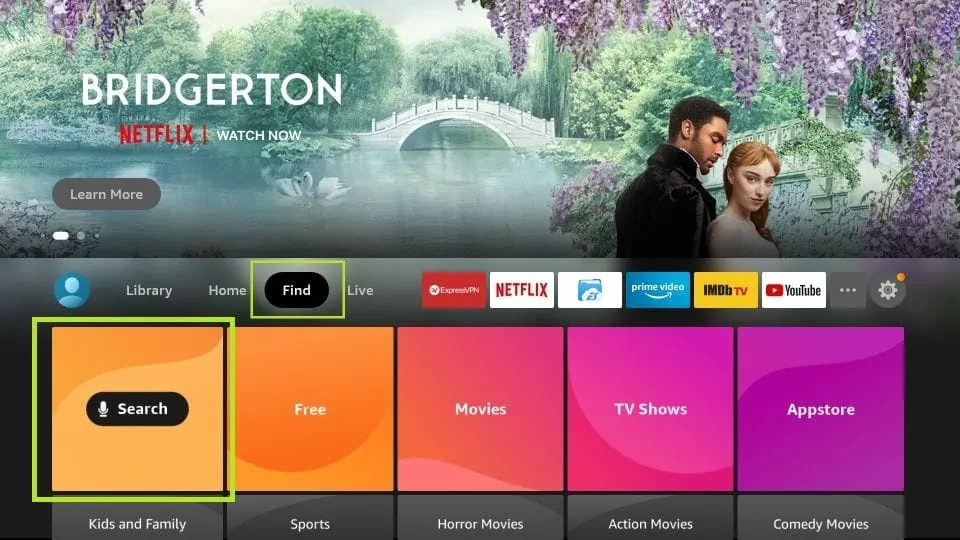
2. Click the Find > Search option on the home screen of FireStick
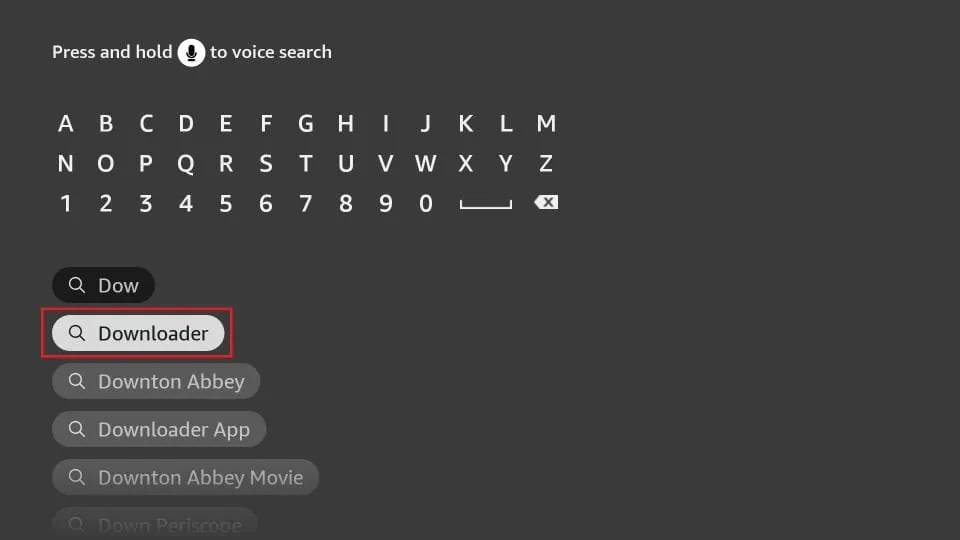
3. Type the name of the app (which is Downloader)
Click the Downloader option when it is displayed in the search results
Choose the Downloader icon on the following screen and download and install the app
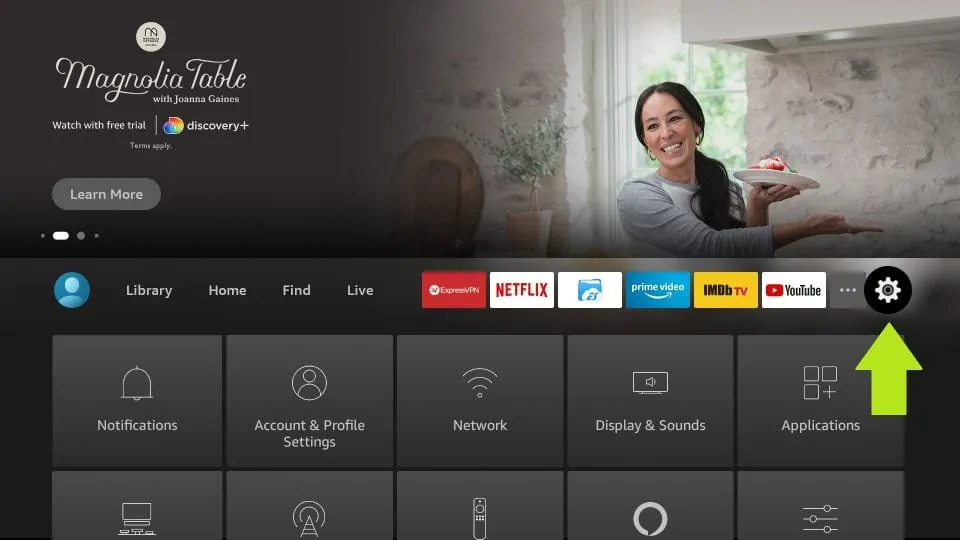
4. Get back to the home screen of FireStick after installing the Downloader app
In the menu bar, click Settings
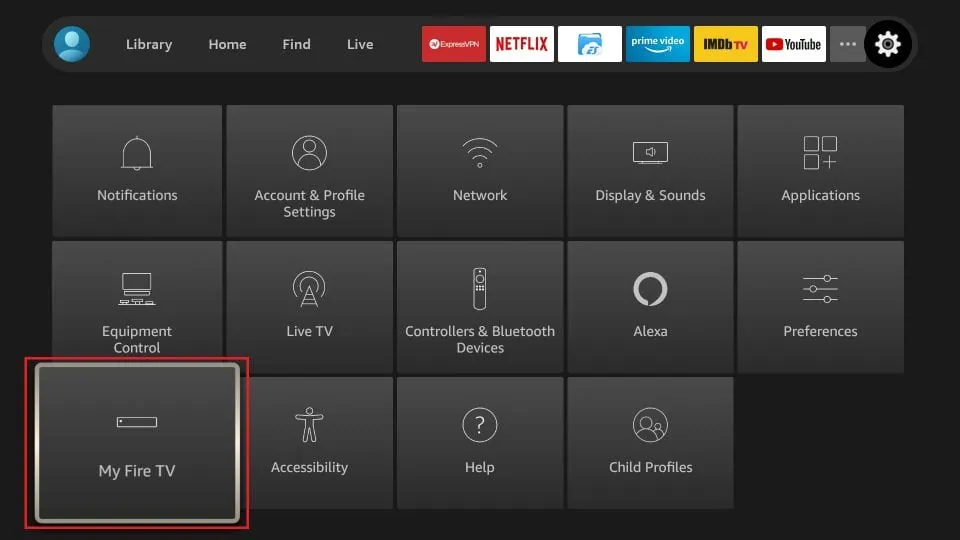
5. In the Settings, choose the option My Fire TV
6. When the following set of options are displayed on the next screen, click Developer Options
If you don’t see “Developer Options”, here is our guide to enable it: How to Get Developer Options on Firestick
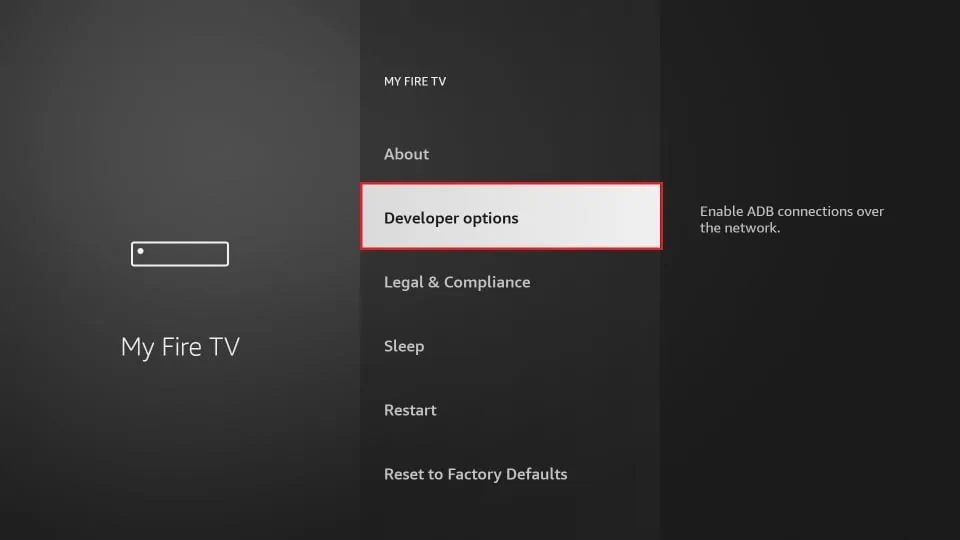
7. Click Install from unknown apps
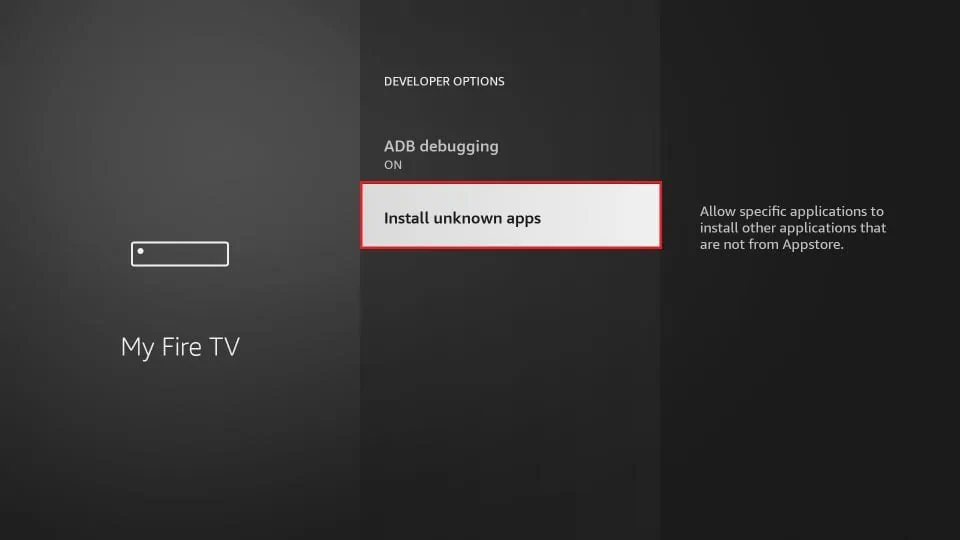
8. Click Downloader to change the status to ON
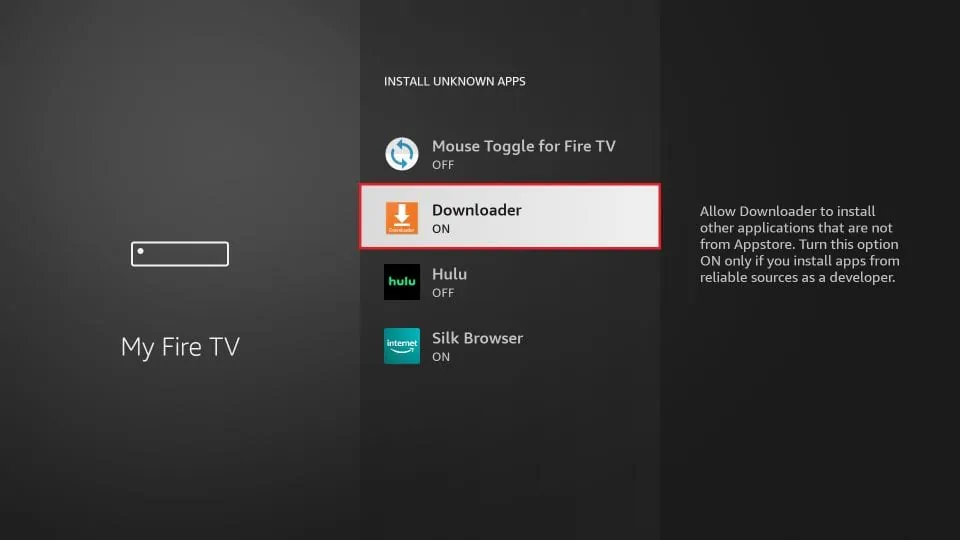
With this, you have configured the FireStick settings to allow the installation of IPTV Smarters and other third-party apps. Follow the steps below:
9. You may now open the Downloader app
When you run this app for the first time, a set of prompts will appear. Dismiss them until you see the following screen
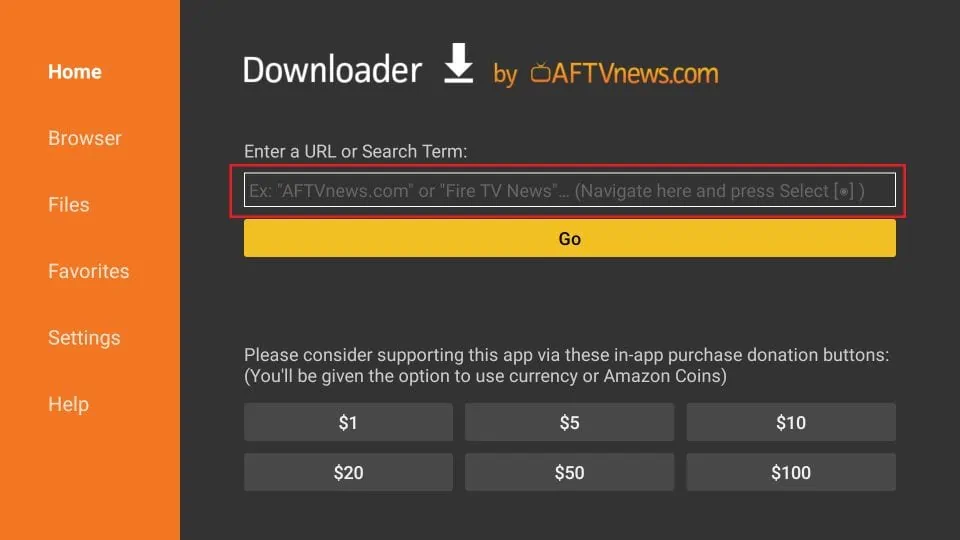
10. Go ahead and enter the following path on this window: limeiptv.com.co/smarters
And Click GO
11. Give it a minute or two until the IPTV Smarter is downloaded onto your FireStick device
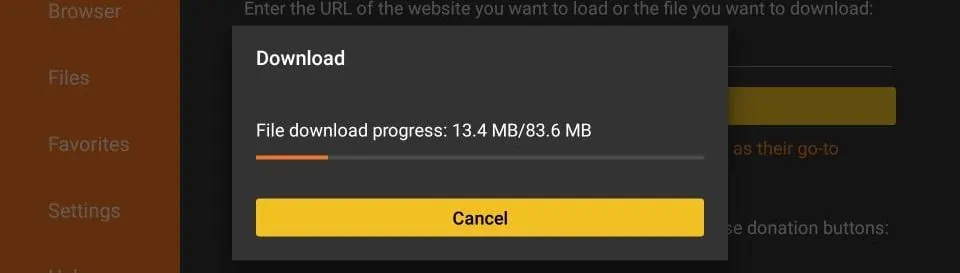
12. When the download has completed, the Downloader app will run the APK file and the installation will start
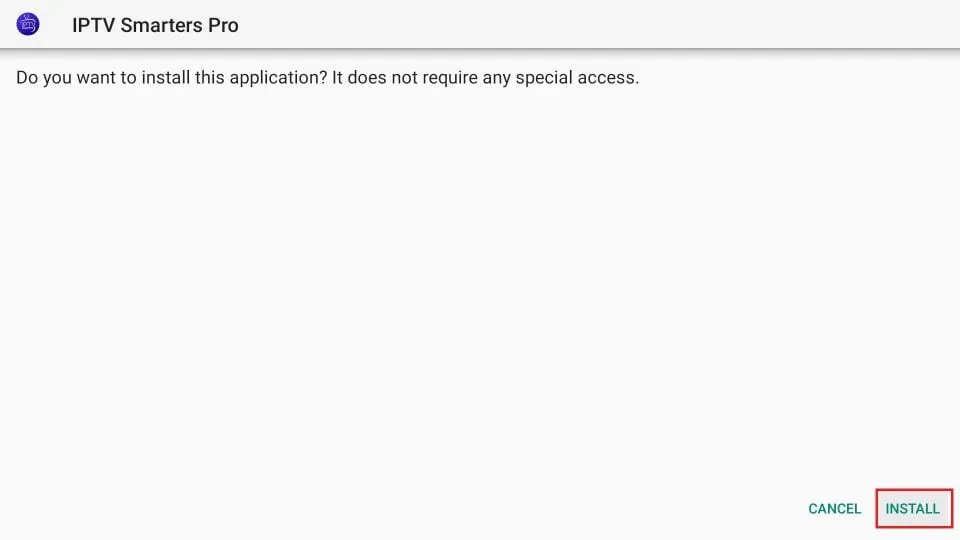
13. Click Install
14. Wait for the installation to finish
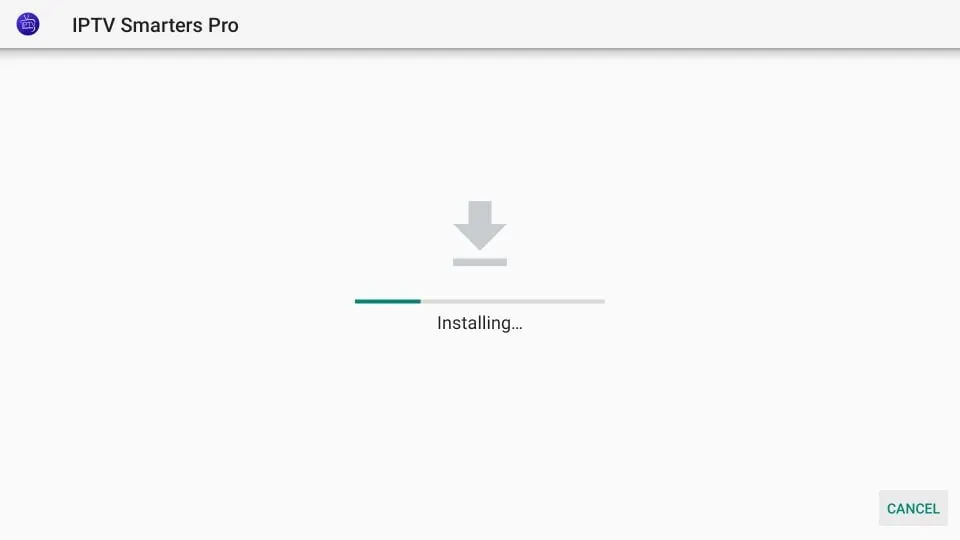
15. Installation is concluded with the App installed notification
16. Congrats! You may now choose to click OPEN and get started with IPTV Smarters.